

Translate in Opera


Benefits of translating in Opera
Translate website content easily, securely, and on your terms.



Translate instantly, right in Opera
Can I resize the Google Translate panel in the sidebar?
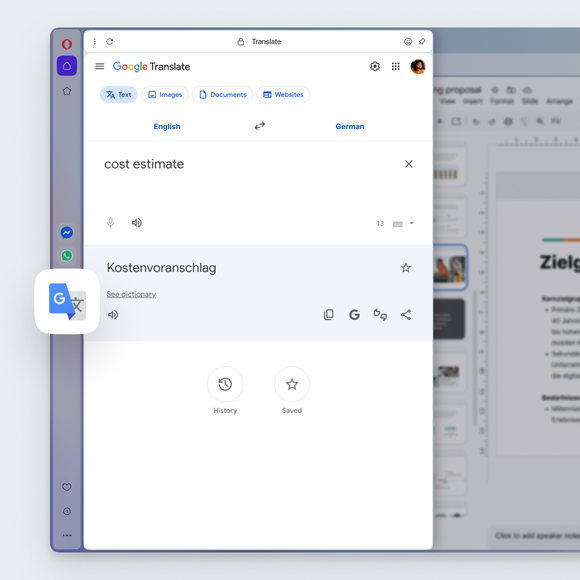
Yes. Just like other sidebar tools in the Opera browser, you can resize the Google Translate panel by dragging the edge of the sidebar. Adjust it to make the panel wider or narrower while you browse, so you can see translations comfortably without leaving your page.
How do I select a language for translation in Opera?
Go to Settings (press Alt+P or type opera:settings in the address bar) > Features > Opera Translate > Translate into this language, and select your default language from the dropdown menu.
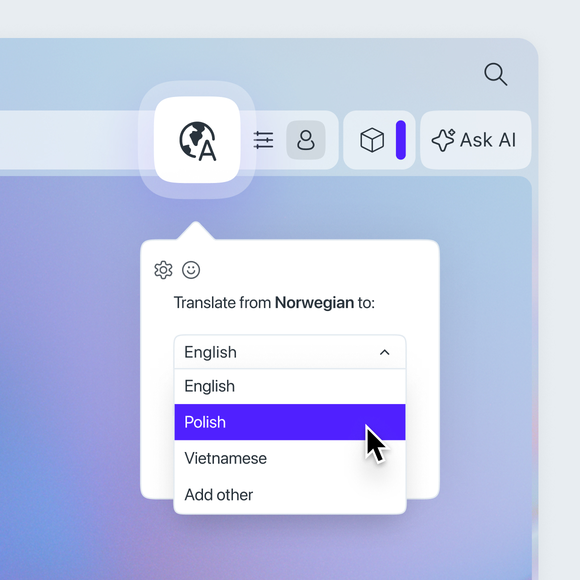
You can also change the language by clicking the globe icon on the right side of the address bar. Once you click, a popup will appear, where you can pick your preferred language.
Can I stop certain languages from being translated?
Yes. Go to Settings (Alt+P) > Features > Opera Translate > Never offer to translate these languages. Add a language to the list and Opera will stop offering to translate it.
I don’t want this page to be translated. What can I do?
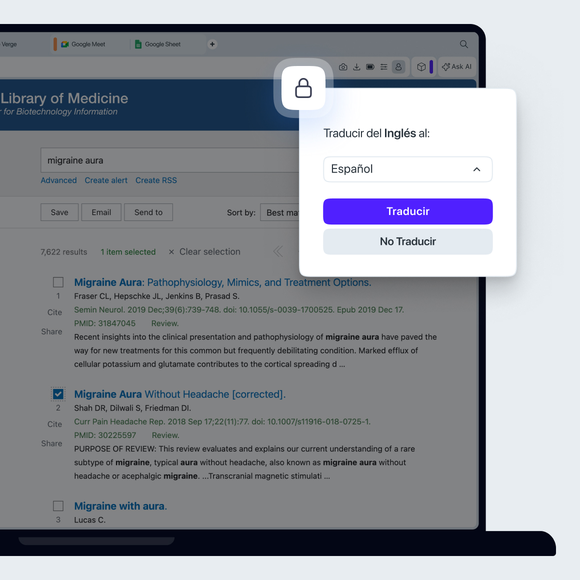
In the translation popup, simply select the option Never translate this site.
What if I dismissed the translation popup but now want to translate the page?
It's easy to get it back. Even after dismissing the initial popup, a small globe icon will remain in your address bar. Click it anytime to bring back the translation options and translate the page.
You deserve a better browser